How to Log a Meal
Macromaxxing gives you three ways to log meals: snap a photo and let AI estimate your macros, describe what you ate with your voice, or type it in manually. Every meal gets a detailed breakdown of calories, protein, carbs, and fat — plus a Meal Score showing how well it matches your goals.
Last updated: April 2026
Step 1: Tap the + Button on the Hub
From the Hub tab, tap the yellow + button in the bottom-right corner. The quick-action menu expands with several options including Saved Meals, Photo Library, Camera, Log a Meal, and more.
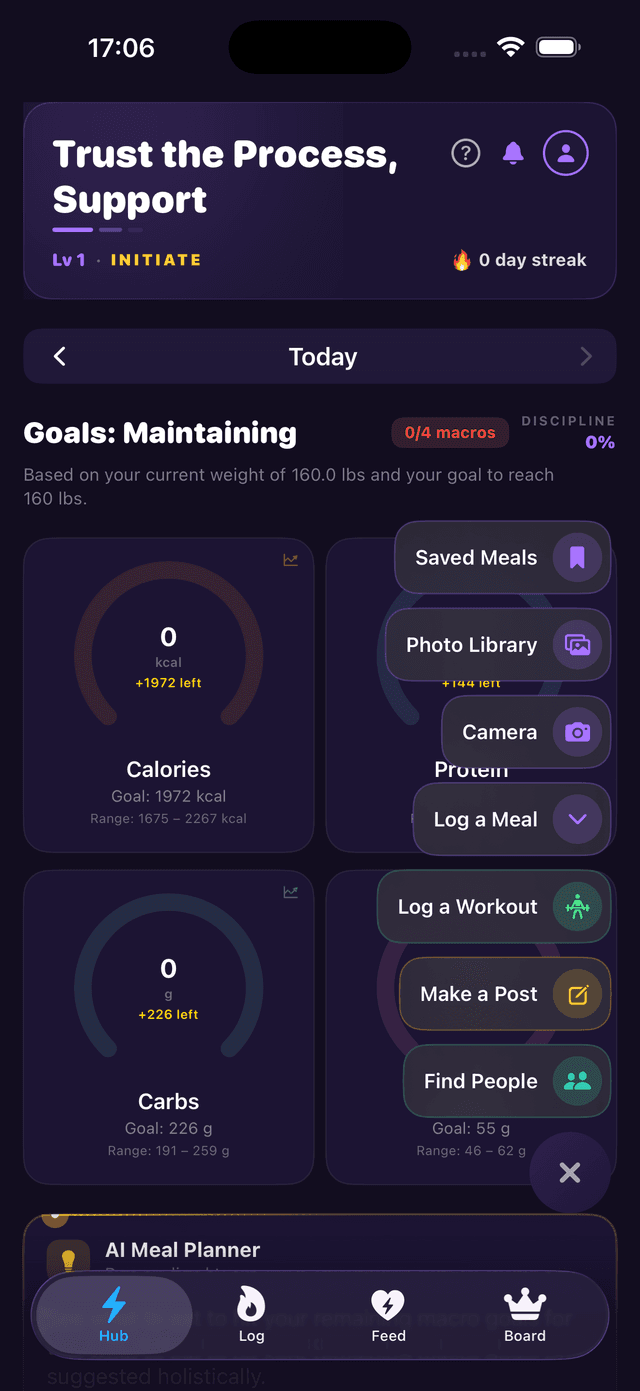
Step 2: Choose How to Log
Tap Log a Meal (or use one of the shortcuts like Camera or Photo Library). The Log Food screen opens with three modes: Manual, Voice, and Photo.
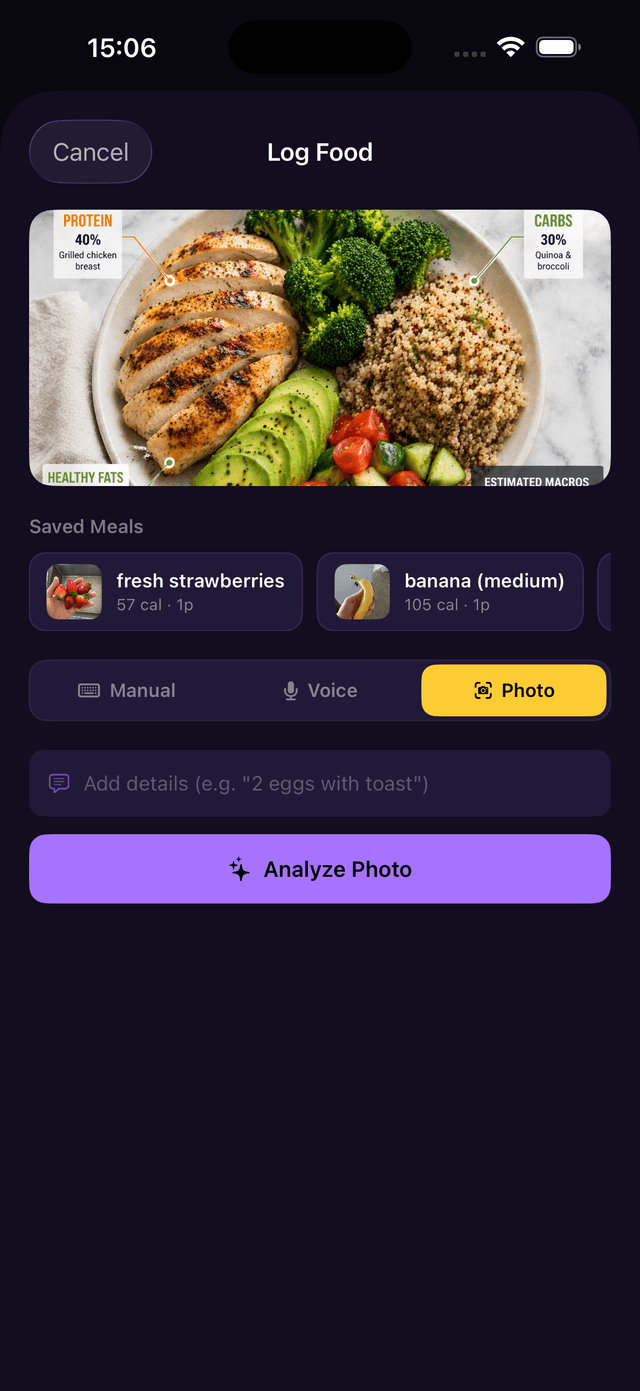
Photo Mode — AI Food Scanner
Take a photo of your food or select one from your library. The image appears at the top of the screen. Optionally add details in the text field (e.g. “2 eggs with toast”) to help the AI be more accurate. Then tap Analyze Photo and Claude AI will identify every item, estimate portions, and calculate your macros.
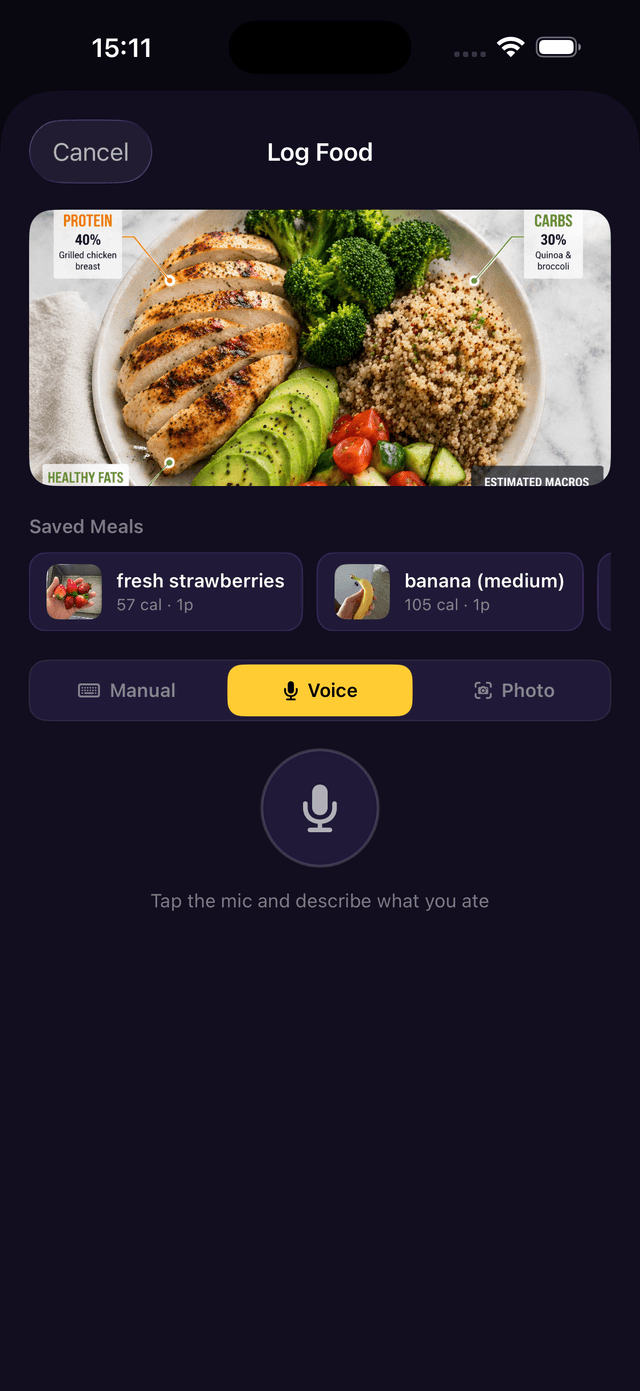
Voice Mode — Describe What You Ate
Tap the Voice tab, then tap the microphone and describe your meal in natural language — for example, “chicken curry with white rice”. The AI processes your description and estimates the macros automatically.
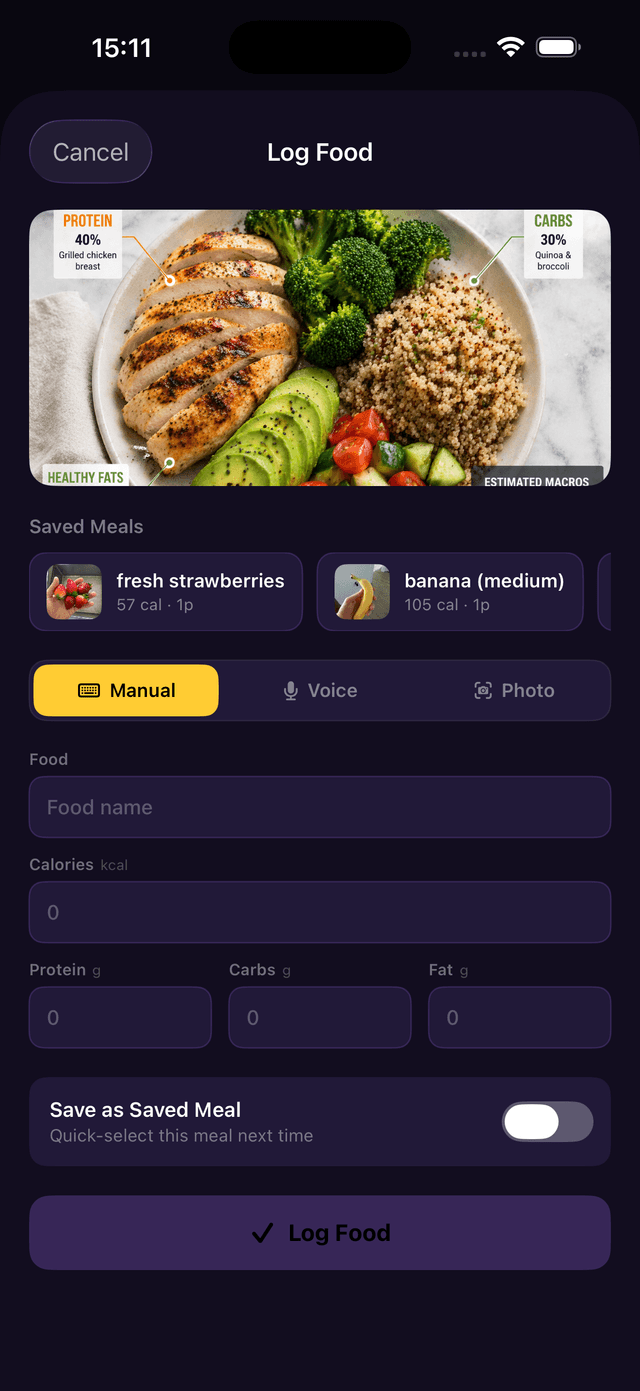
Manual Mode — Type It In
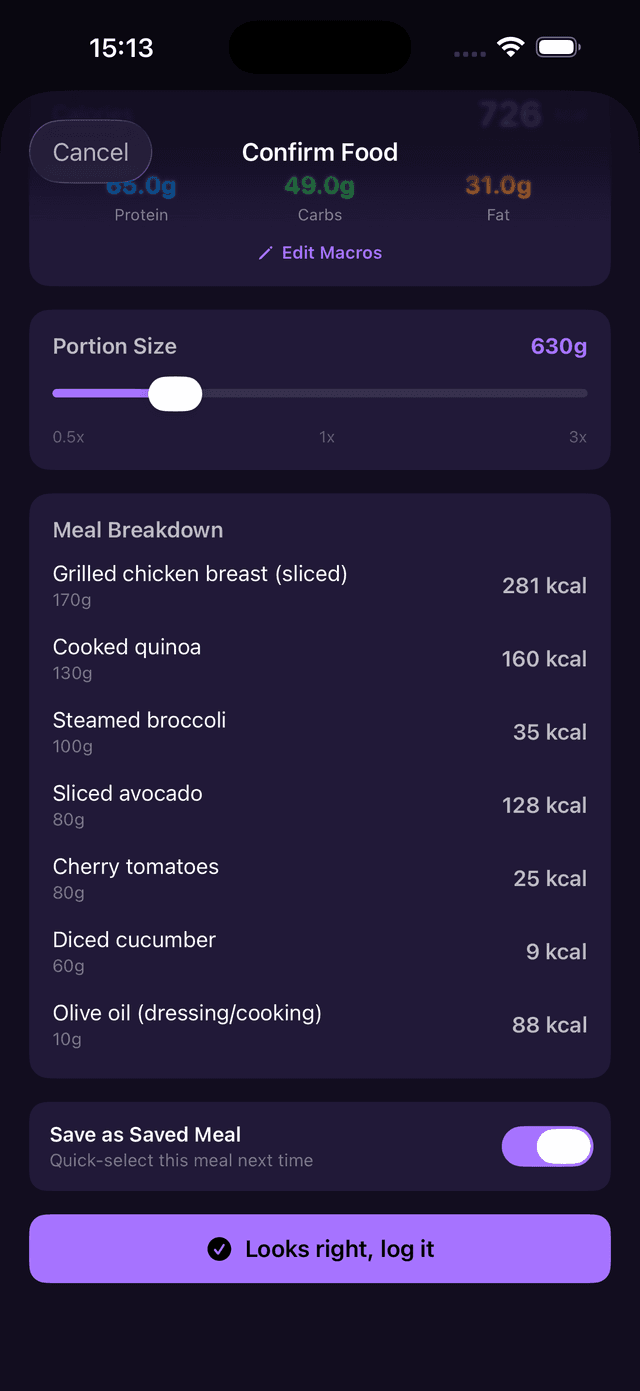
Tap the Manual tab to enter everything yourself. Fill in the food name, calories, protein, carbs, and fat. Toggle on Save as Saved Meal if you want to re-log this meal quickly in the future. Then tap Log Food to save.
Saved Meals
Your saved meals appear as quick-select chips at the top of the Log Food screen. Tap any saved meal to instantly log it again without re-entering details.
Step 3: Review & Confirm
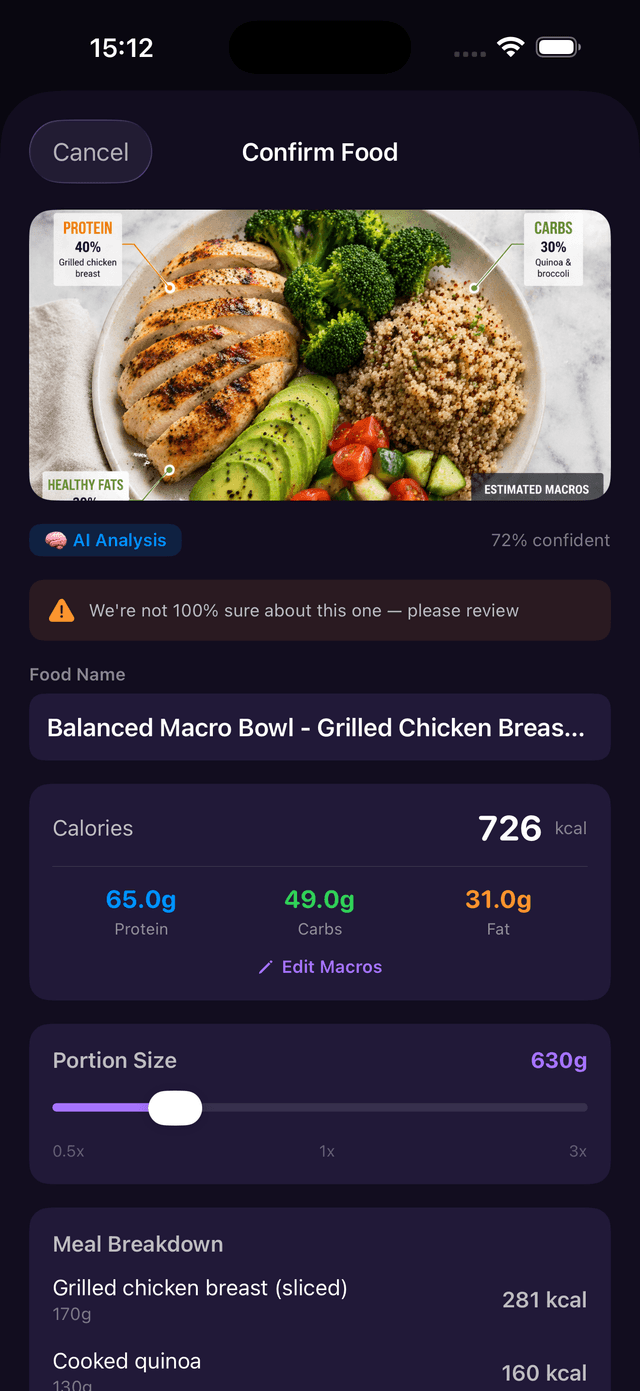
After AI analysis (Photo or Voice mode), the Confirm Food screen shows everything the AI detected. Review the results and adjust anything that needs correcting:
AI Confidence
The AI shows a confidence percentage (e.g. 72% confident). If it's not fully sure, you'll see a yellow warning asking you to review. You can always edit the macros or food name.
Macros & Edit
See the total calories, protein, carbs, and fat at a glance. Tap Edit Macros to manually adjust any value if the AI estimate needs correcting.
Portion Size
Use the slider to scale the portion between 0.5x and 3x. All macros update in real time as you adjust. This is useful when you ate more or less than a standard serving.
Meal Breakdown
The AI lists every individual ingredient it detected with its portion weight and calorie count — for example, grilled chicken breast (170g, 281 kcal), cooked quinoa (130g, 160 kcal), steamed broccoli, and more.
When everything looks good, tap Looks right, log it to save the meal to your Fuel Log.
Step 4: View Your Fuel Log
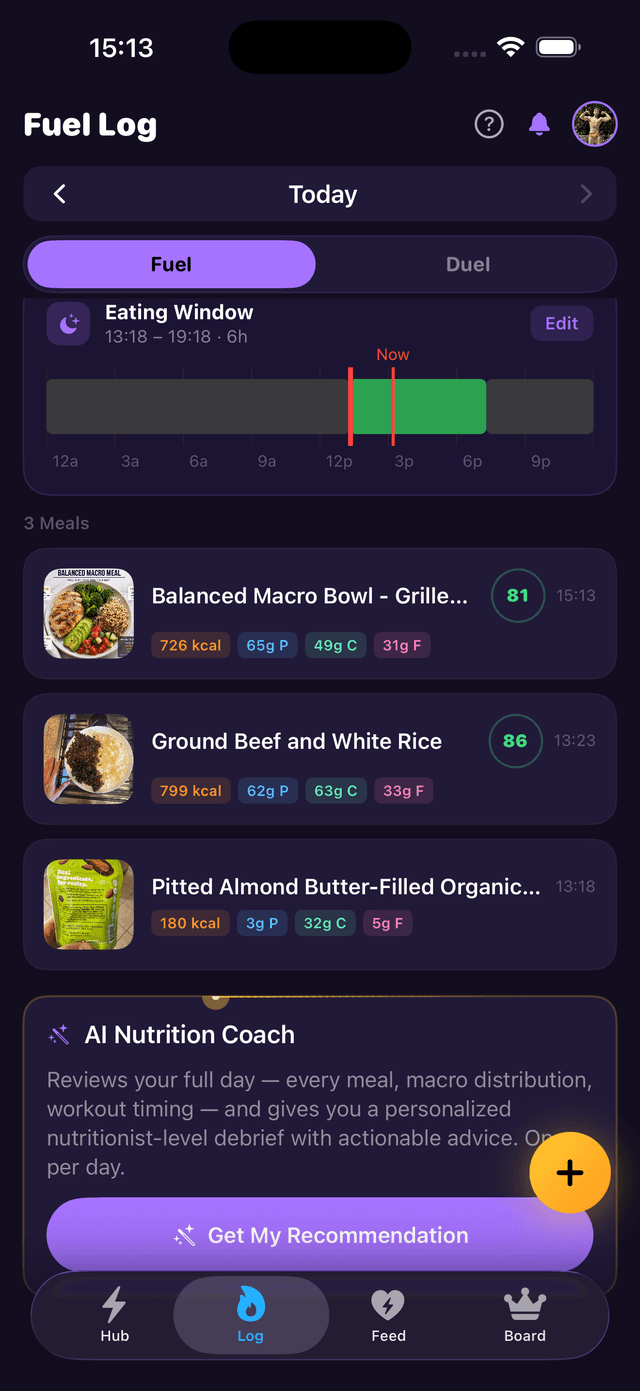
Head to the Log tab and make sure Fuel is selected. Here you'll see your full day at a glance:
- Eating Window — a timeline showing when you ate during the day
- All logged meals with their photo, macro summary, and Meal Score
- AI Nutrition Coach — tap “Get My Recommendation” for a personalized debrief reviewing your meals, macro distribution, and timing
Understanding Your Meal Score
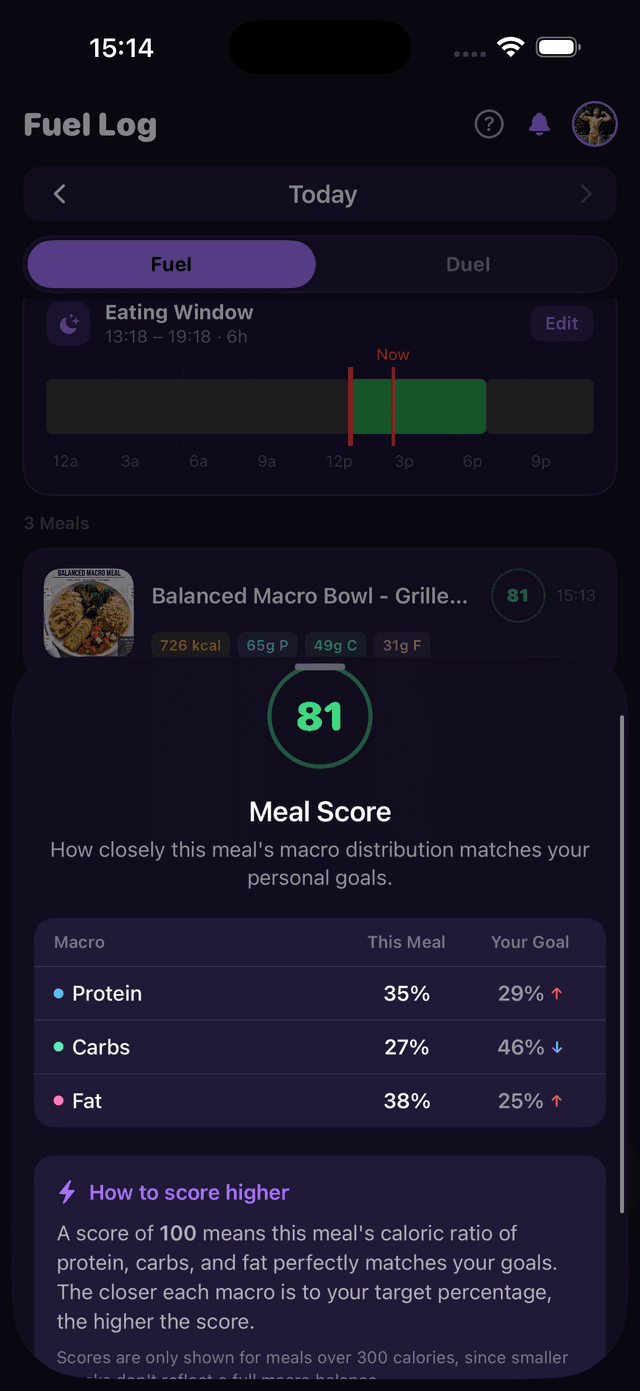
Tap any meal in the Fuel Log to see its Meal Score — a number from 0 to 100 that measures how closely the meal's macro distribution matches your personal goals. The breakdown shows each macro's percentage in the meal vs. your target, so you can see exactly where to adjust.
How to Score Higher
A score of 100 means the meal's caloric ratio of protein, carbs, and fat perfectly matches your target percentages. The closer each macro is to your goal, the higher the score. Scores are shown for meals over 300 calories.
Share Your Fuel Log as a Post
Want to share what you ate with the community? When creating a post, select the Fuel Log label and your day's meals will be automatically attached with each food entry and calorie count.
Earns Aura Points!
Posting with the Fuel Log label earns you aura points toward your level and streak. Stay consistent to level up faster.
See our How to Make a Post guide for the full walkthrough on creating posts.