How to Find People
Macromaxxing is better with a community. Find friends, follow other users, and see their posts, progress, and wins on your feed. Here's how to search for and follow people.
Last updated: April 2026
Step 1: Tap the + Button on the Hub
From the Hub tab, tap the yellow + button in the bottom-right corner to open the quick-action menu.
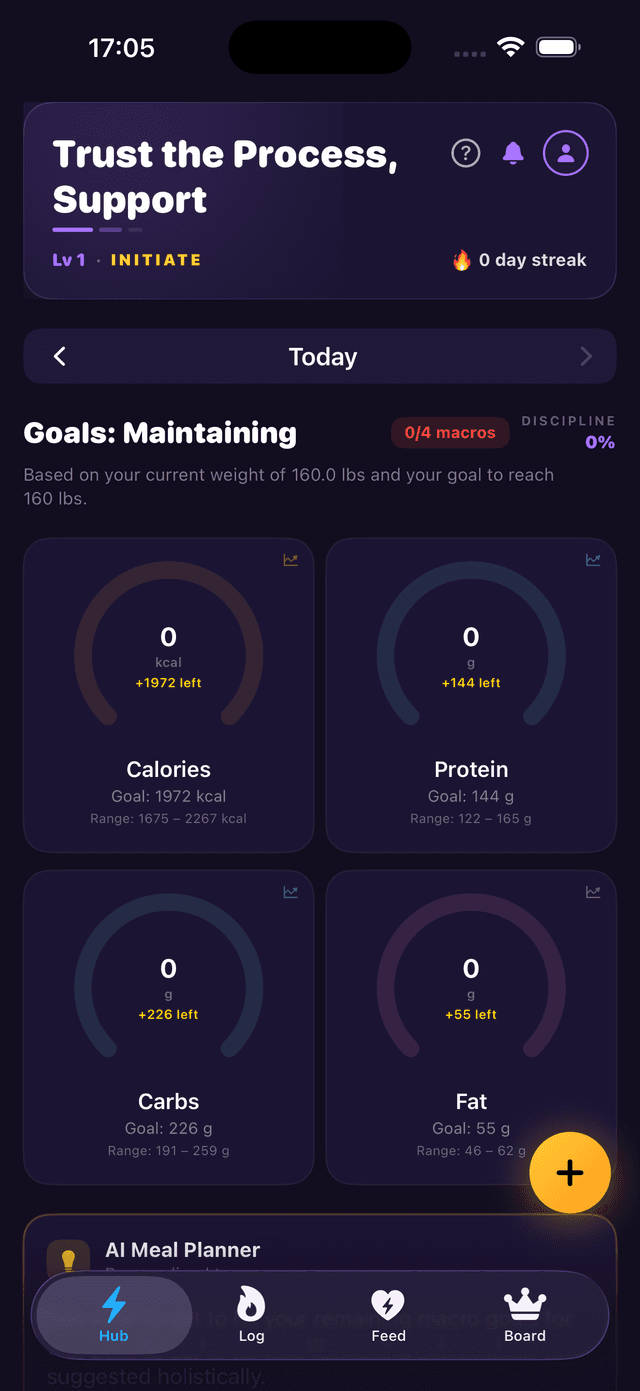
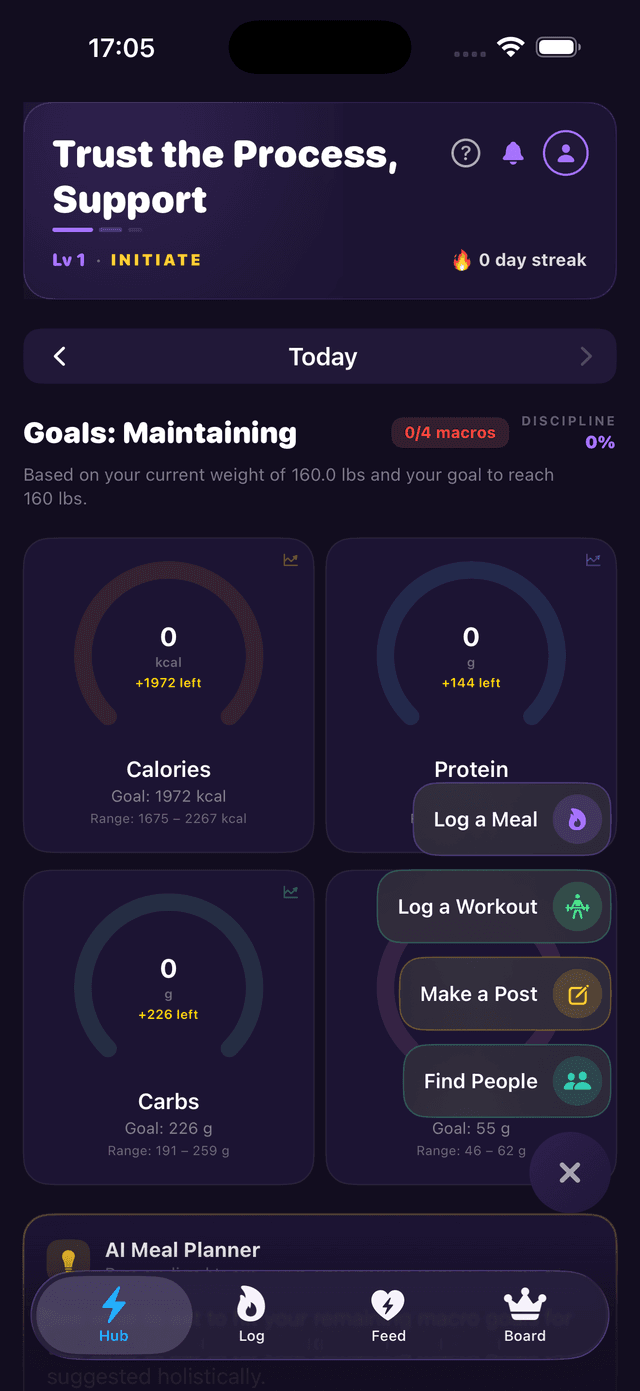
Step 2: Select “Find People”
From the action menu, tap Find People to open the user search screen.
Step 3: Search & Follow
Type a name or username into the search bar at the top. Matching users appear instantly under Results. Each result shows:

Profile Photo & Username
The user's profile picture, display name, and @username so you can confirm you're following the right person.
Location
If the user has set a Profile Location, their city and country appear below their username (e.g. “Los Angeles, CA, United States”).
Follower Count
A people icon with their follower count, so you can see how active they are in the community.
Follow Button
Tap the yellow Follow button to follow the user. Their posts will start appearing in your feed, and you can view their full profile.
Tips
Search by Username — If you know someone's @username, searching for it directly is the fastest way to find them.
Build Your Community — Following people keeps you accountable. See their posts, cheer on their progress, and stay motivated together.
Set Your Location — Add your city in Settings so others can find you and you show up on the local leaderboard.